
SharePoint Document Library Architecture
What's inside
Terms used in this document
Organisations don't have a SharePoint problem. They have an access discipline problem.
Most environments grow organically: folders created on the fly, permissions granted directly to individuals, inheritance broken at random, and "temporary access" that quietly becomes permanent. It works, until it doesn't.
Now introduce AI. If Microsoft 365 Copilot, or any AI capability, is enabled in a poorly governed tenant, it does not magically understand intent. It simply surfaces whatever users technically have access to. If permissions are messy, AI will faithfully expose messy access at scale.
This document defines a top-down, identity-driven access model across SharePoint and Entra ID, then layers metadata, naming, versioning and a controlled-library pattern on top of it, so the repository is tidy, searchable, and ready for AI without fear.
01What we are doing
We are implementing an access model that ensures:
- Access is controlled centrally through Entra ID groups, not granted directly to individuals.
- Permissions are applied at structured folder levels, starting from the top of the library and cascading intentionally.
- Data Owners define who should access information, and IT enforces that access via group membership.
- Library-level permissions are locked down, preventing uncontrolled inheritance and accidental exposure.
- External sharing is controlled and isolated, reducing data sprawl.
02 · The core principle
This model ensures that when AI is enabled:
- Users only see content aligned to their role.
- Sensitive folders are not accidentally indexed for the wrong audiences.
- Information discovery is governed by deliberate access controls.
- AI becomes a productivity accelerator, not a compliance liability.
03 · Problems this fixes
- Overexposure of sensitive information. Removes ad-hoc user-level permissions that silently expand access over time.
- Permission sprawl. Eliminates unmanaged inheritance and one-off sharing decisions that compound into risk.
- AI data leakage risk. Prevents AI from surfacing documents users technically have access to but should never have retained.
- Lack of accountability. Introduces clear data ownership, so someone is responsible for each area of information.
- Operational inefficiency. Streamlines onboarding and offboarding. Access changes happen once in Entra ID group membership, not across dozens of folders.
04 · The strategic outcome
- Least privilege by design.
- Predictable access structure.
- Reduced audit and compliance risk.
- AI readiness without fear.
- Governance that scales with growth.
This isn't just about tidying up SharePoint. It's about ensuring that when AI turns on, your organisation isn't surprised by what it finds. And more importantly, neither are you.
05 · Simple architecture
- One central SharePoint document library (the "File Server" or "Repository") that becomes the governed home for working files: a single library to sync.
- A three-layer folder model (Header → Level 2 → Level 3) where permissions are applied using Entra ID groups.
- Data Owners decide who gets access; IT implements via groups and folder permission application.
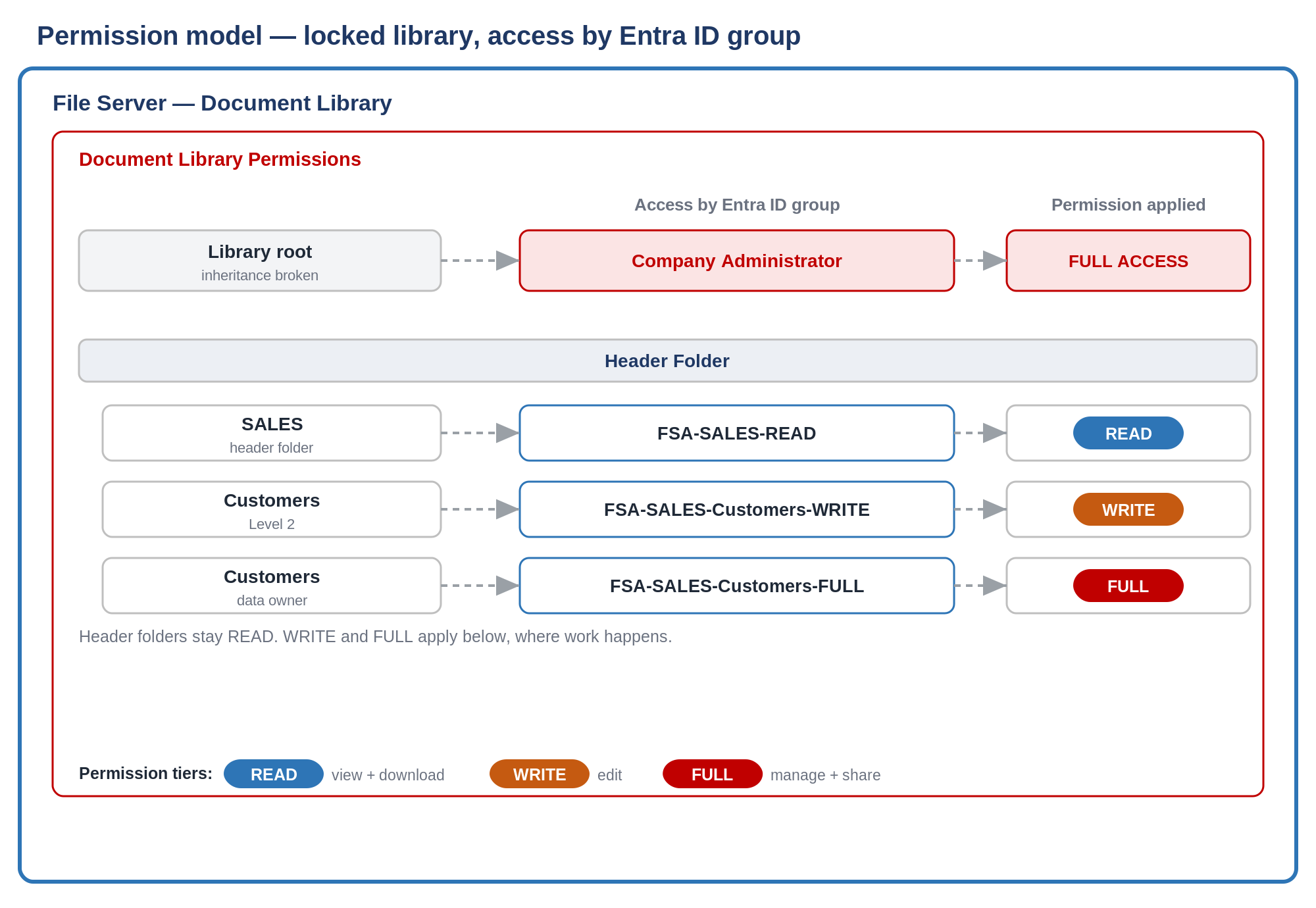
06 · Step-by-step build
5.1Lock down the library first
- Go to the document library (your central repository).
- Open Settings (cog) → More library settings → Permissions for this document library.
- Ensure inheritance is broken and the library permission set is minimal (admin-only control).
5.2Define your permission levels
Create three permission levels for the library and use them everywhere. Names can be yours, but keep three tiers.
- Read: users can see, navigate and read contents, but can't create subfolders.
- Write: users can create, edit and delete in the folder, but can't share to people without access.
- Full: "data owner" control at level 2 or 3, where they manage items and sharing for their area. This lets them share freely, outside the Entra ID group structure, so use it only if needed. Otherwise, ask them to download the file to their OneDrive and share from there.
5.3Design the folder structure with Data Owners
Before you touch permissions, map the structure. Use the companion workbook to list:
- Header folder (department), Level 2 folder, Level 3 folder (optional).
- Data Owner role or group.
- Read / Write / Full access groups needed.
Establish one accountable Data Owner per header folder, not "everyone owns it". Keep the structure to a maximum of three layers to avoid a permissions labyrinth nobody understands later.
5.4Standardise Entra ID group naming
Create Entra ID security groups that follow a predictable pattern, so future-you doesn't hate past-you:
| Level | Group pattern |
|---|---|
| Header folder (READ only) | FSA-<HEADER>-READ |
| Level 2 folder | FSA-<HEADER>-<Folder>-READ / -WRITE / -FULL |
| Level 3 folder | FSA-<HEADER>-<Folder>-<Folder>-READ / -WRITE / -FULL |
5.5Build "ROLE" and "TEAM" groups in Entra ID
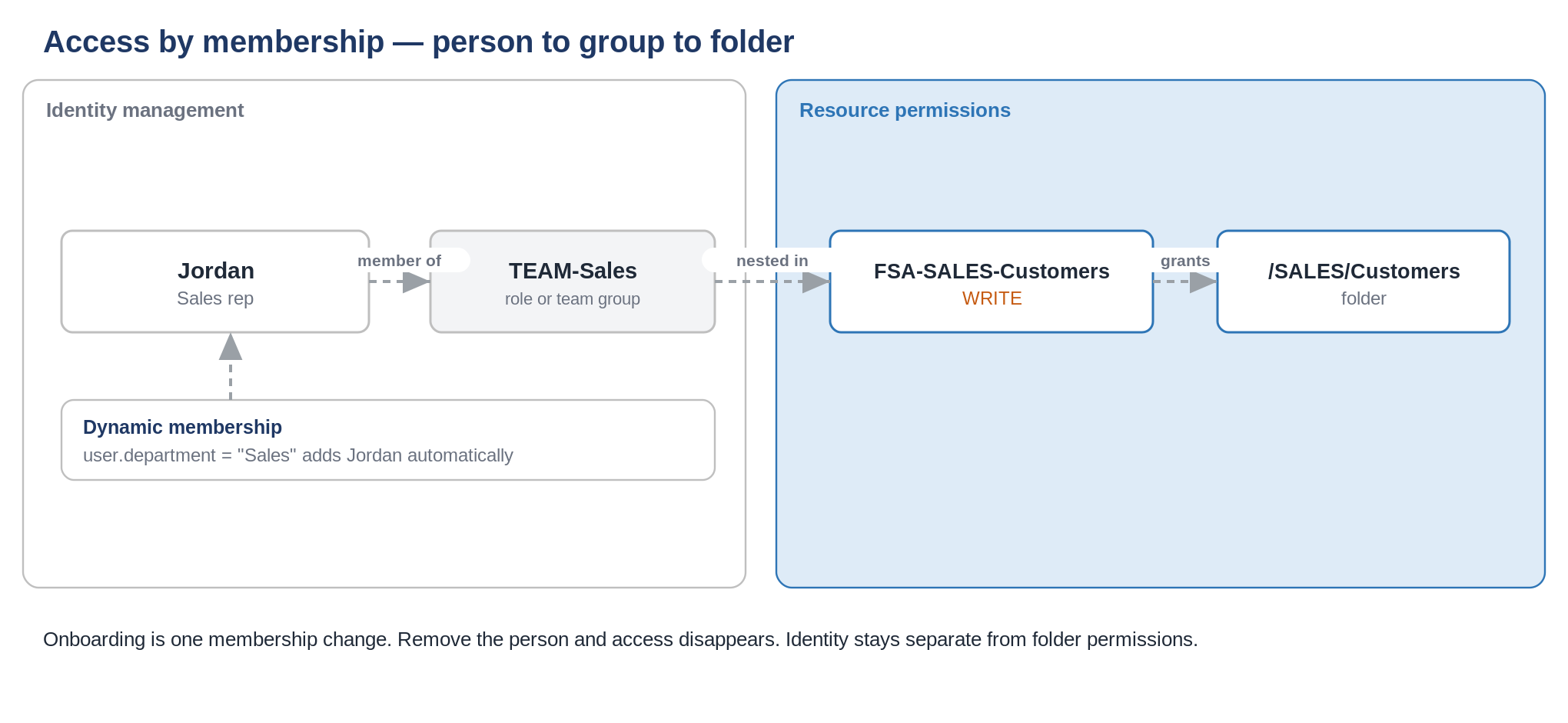
- Create ROLE groups (ROLE-CFO, ROLE-CEO, ROLE-CHRO). As people leave, replace the member and the new person inherits everything they need.
- Create TEAM groups (TEAM-Finance, TEAM-Sales, TEAM-Board) and assign users accordingly.
- Use dynamic membership rules for the most scalable outcome.
- Nest ROLE and TEAM groups into the relevant FSA folder-access groups, so onboarding is just "add user to TEAM/ROLE" and access flows automatically.
5.6Apply folder permissions in SharePoint
A repeatable method for each folder that needs unique permissions:
- In the library, go to the folder → ellipsis (…) → Manage access.
- Select More options → Advanced.
- Click Stop inheriting permissions.
- Remove access entries that shouldn't be there (e.g. inherited read at the wrong level).
- Click Grant permissions.
- Enter the relevant FSA group name, untick "share everything in this folder", show options, and disable email invites.
- Select the matching permission level (Read / Write / Full).
5.7Critical rule: header folders stay READ
Header folders (top-level department folders) should be READ only, with WRITE and FULL applied only below that, where the Data Owner's working structure starts.
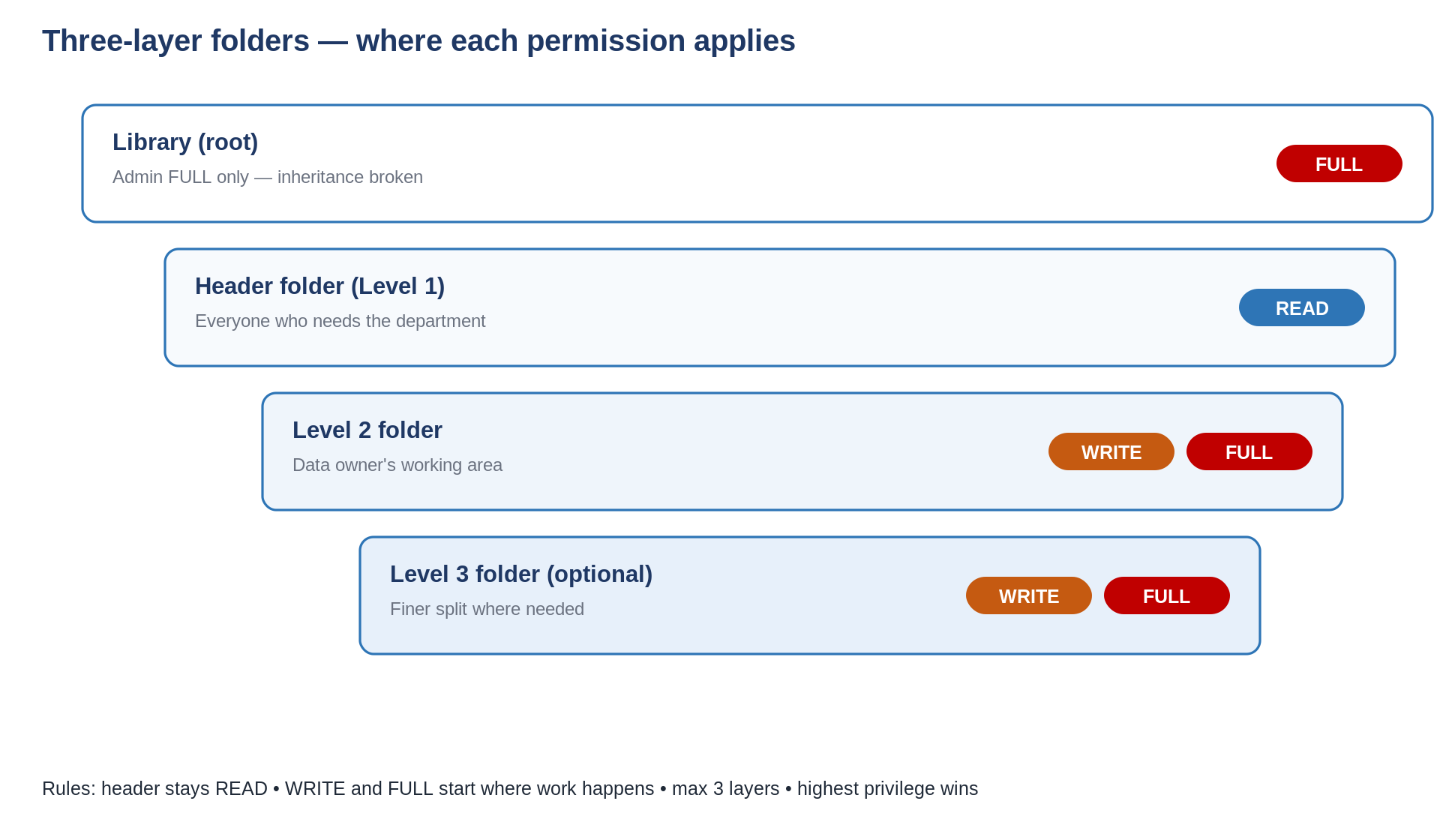
5.8Access methods
Help users actually use the library. They reach the governed repository via:
- SharePoint intranet navigation.
- Teams (add a SharePoint library location into a Team tab by URL).
- Sync to File Explorer (sync what they need, not the entire universe).
5.9External sharing rule
5.10Migration and syncing safety
- Data Owners move content into the new structure once folders are ready, keeping only what's needed.
- Syncing too much content can crush endpoints, and increases exposure if a device is compromised.
07 · Metadata and search
Folders decide who can open a file. Metadata decides how fast anyone finds it. The two jobs are different, so we add metadata on top of the folder model, not instead of it. The folder tree stays as the security boundary and the sync unit. Metadata becomes the search and filtering layer that SharePoint search and Copilot read.
Metadata that fills itself in
One rule keeps effort near zero: let location do the tagging. A column a person has to fill in on every save will be ignored or worked around. SharePoint can set a default column value per folder, so a file added to CORPORATE → FINANCE inherits Department = Corporate and Function = Finance with no user action. The folder you already built becomes the tag.
How to set it (once per library):
- Add the columns at the library (Library settings → Create column). Add them as site columns to reuse the set across libraries.
- Open Library settings → Column default value settings.
- Select a folder, pick the column, type the default value. Repeat for each header and Level 2 folder.
- New files added to that folder now inherit the values automatically.
The column set (hold it to four)
| Column | Type | How it's set | Purpose |
|---|---|---|---|
| Department | Choice | Folder default (header) | Mirrors the top folder. Powers search filters and views. |
| Function | Choice | Folder default (Level 2) | Narrows search inside a department. |
| Document Type | Choice | User picks | The one human choice. Defined in section 08. |
| Review Date | Date | Manual, optional | Only for documents that expire. Drives a due-for-review view. |
- Keep every column optional at upload. A required column forces a prompt on every save and trains people to dump files elsewhere.
- Don't put sensitivity here. Sensitivity is a Purview label, a separate control. Metadata says what the document is; the label says how protected it is.
- Promote columns to site columns if you run more than one library, so the taxonomy applies everywhere.
Turn the columns into faster search
- Add the columns to the default view, then group or filter by Department and Document Type.
- Turn on Metadata navigation and filtering for a left-hand filter tree.
- Pin saved views: Policies due for review, Contracts by department, Templates.
- Copilot reads these columns as context, so a tidy column set lifts answer quality, not just manual search.
08 · Document categorisation
Categorisation fails when it asks people to think. Every extra choice on save is a tax, and people avoid taxes. Two things do the work for you: the folder a file lands in, and one short list of document types.
Let location carry the category
Department and Function are already decided by the folder. Don't ask anyone to type them again; the folder default columns from section 07 capture them automatically. That is most of your categorisation done with zero clicks.
One document-type list for the whole library
Add a single Document Type list and use it everywhere. One list, not one per department. A shared list keeps search consistent and stops twelve versions of the word "contract".
| Type | Use for |
|---|---|
| Policy | Rules people must follow |
| Procedure | Step-by-step how-to and work instructions |
| Template | Reusable starting files |
| Form | Blank documents people complete |
| Contract | Signed agreements, NDAs, statements of work |
| Proposal | Quotes, proposals, tenders |
| Report | Analysis, results, board and status reports |
| Presentation | Decks and briefing slides |
| Finance | Invoices, statements, expense records |
| Meeting | Agendas and minutes |
| Correspondence | Letters and formal email kept as a record |
| Register | Logs and lists, such as risk or asset registers |
| Reference | Background material kept for context |
| Other | Anything that doesn't fit. The default value. |
- One flat list, no sub-types. If a department needs finer detail, that's a folder, not a new type.
- Default the column to Other, or to the folder's usual type. Never blank, never required.
- Review the list each quarter. Merge any type used on under two percent of files.
- Cap it near fifteen. Long lists cause decision fatigue and random picks.
09 · Naming convention
A good file name is short, tells you what the file is, and doesn't repeat what the folder already says. The path carries the context; the name carries the specifics.
The character limit, stated correctly
The real limit is 400 characters for the whole path (folder path plus file name, measured after decoding). The 256 figure is the old single-name limit and isn't the one that bites. What bites is the full path, and it bites hardest on sync.
| Path part | Rough character cost | Keep it to |
|---|---|---|
| Sync and library prefix | 90 to 150 | Fixed. Plan around it. |
| Three folder names | Up to 75 | About 25 each |
| File name | Your control | 80 or fewer |
| Whole path (working target) | — | Under 250, leaves headroom |
Default names (most files)
- Say what it is in plain words: Onboarding Checklist, Board Pack 2026-06.
- Don't repeat the folder. Inside Sales → Customers → Acme, name it Proposal, not Sales Acme Proposal.
- No version numbers, no FINAL, no FINAL v2. Version history does this (section 10).
- Add a date only when it's part of the document, written YYYY-MM-DD so it sorts.
- Spaces or hyphens are both fine. Spaces become %20 in links and cost a little more path, so hyphens are safer for files that sit deep.
Structured names (high-volume types)
For repeatable, high-volume documents, a fixed pattern pays off. Use it for contracts, invoices, proposals and dated reports. Leave everything else on the default.
Pattern: Type_Party-or-Topic_YYYY-MM-DD_optional-ID
| Document | Name |
|---|---|
| Contract | Contract_AcmeCorp_2026-03-14 |
| Invoice | INV_AcmeCorp_2026-03-14_10231 |
| Proposal | Proposal_AcmeCorp_2026-03-14 |
| Monthly report | Report_SalesMonthly_2026-03-31 |
- Use the ISO date YYYY-MM-DD so names sort in date order.
- Underscore between parts, hyphen inside a part. Write AcmeCorp, not Acme Corp.
- Keep each part short; the whole name stays under 80 characters.
Characters and names to avoid
- Never use: \ / : * ? " < > |
- Avoid hash and percent; they break links until an admin enables them.
- Don't end a name with a full stop, or start one with a tilde. Avoid leading or trailing spaces.
- Reserved names that fail: .lock, CON, PRN, AUX, NUL, COM0-9, LPT0-9, desktop.ini, and anything starting with the tilde-dollar pair.
- Delete on sight: FINAL, FINAL_USE_THIS, Copy of, draft2; dates as DD-MM-YYYY (they don't sort); the folder or client name repeated in the file name.
10 · Versioning without check-out
Check-out is the slow path. It locks a file to one person, blocks co-authoring, and people forget to check it back in, so others sit blocked. We don't use it on the working repository. We use version history instead: the same safety net without the friction.
- SharePoint turns on major versioning by default, keeping the last 500 versions.
- "Require check out" is off by default, and Microsoft says keep it off where people co-author. Checking a file out turns co-authoring off.
- Version history records who changed what and when, and lets anyone with edit rights roll back, the protection check-out was meant to give.
The settings (set once per library)
In Library settings → Versioning settings:
- Require documents to be checked out: No.
- Create major versions: Yes. Major only. Skip minor and draft versions on a file server.
- Keep the number of major versions: cap it. 100 to 500 is fine for documents.
- Content approval: No. Approval adds a Pending workflow that doesn't belong on a general repository.
How people work day to day
- Open and edit in place. Leave AutoSave on. Co-author freely, several people at once.
- To undo a bad change, open Version history → Restore the version you want.
- If one file genuinely needs a short lock, check out that single file, then check it straight back in. Don't turn on Require Check Out for the whole library.
This pairs with the permission tiers in section 5.2: Write and Full both allow editing and version restore, Read does not. And remember the sync note: a folder set to Read that holds files still needs the file to download for sync, so apply Read at the header level and open up Write where people actually work.
11 · Controlled libraries
Section 10 turns check-out off for the main repository, because working files need co-authoring. Some content is the opposite. A policy or procedure is a single published source that everyone reads and only a few maintain. That content gets its own library with different rules. This is a deliberate exception, not a contradiction.
Keep these as separate libraries in the same intranet site, so they surface through Viva Connections for everyone. The main repository stays the working file server; controlled libraries hold the approved, published documents.
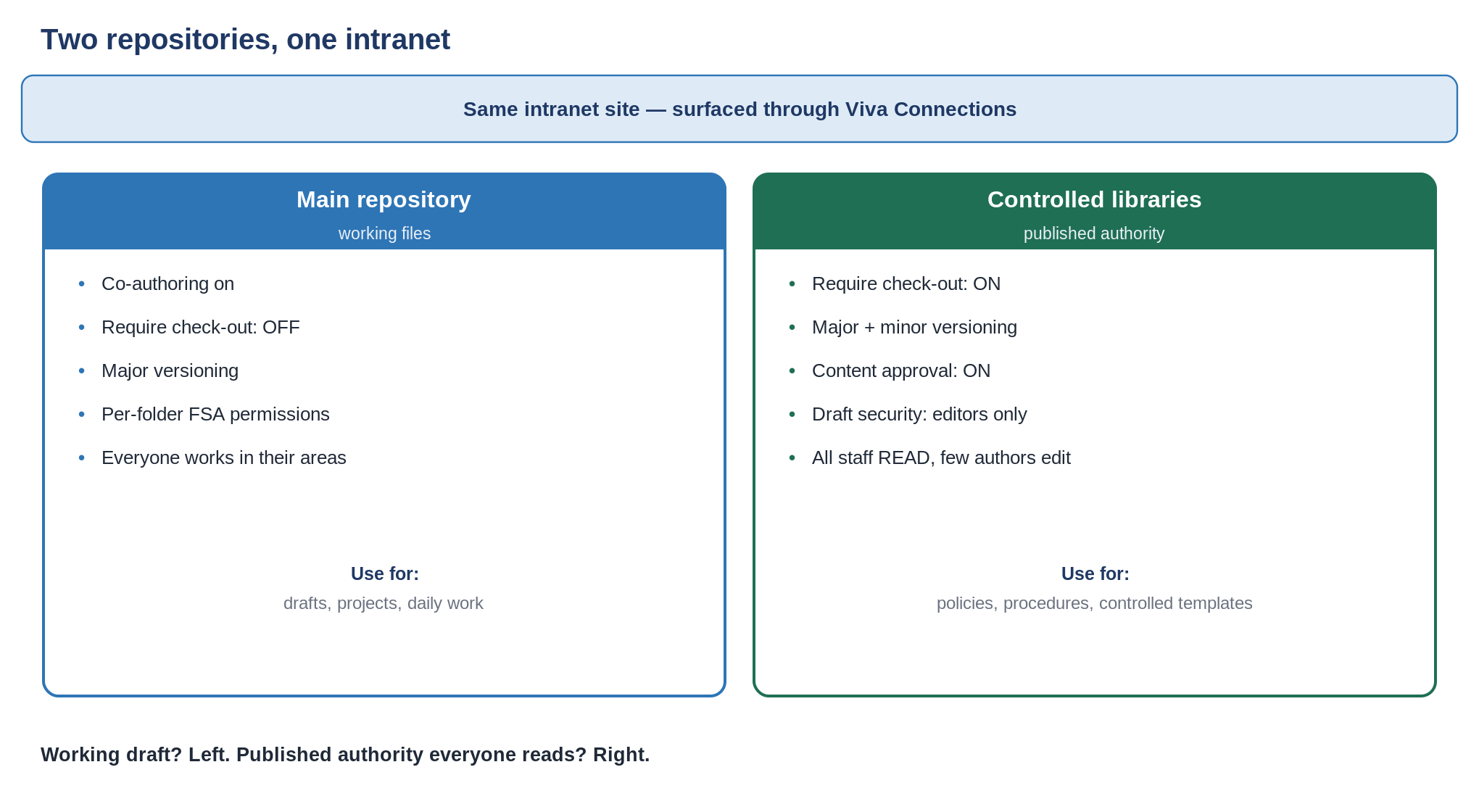
What belongs here
- Authoritative documents with one correct version: policies, procedures, standards, controlled templates.
- Content everyone reads but only a few maintain, that needs an approved version and a review cycle.
- Keep working drafts, project files and daily collaboration out; they stay in the main repository.
Permissions (read for all, edit for few)
This library doesn't use the per-folder FSA model. It's simpler: three groups, applied at the library after you break inheritance.
| Group | Permission | Who | What they can do |
|---|---|---|---|
| All staff | Read | Everyone | Read and download the published version |
| Authors | Contribute / Edit | The few who maintain content | Create and edit drafts |
| Owners | Full control | One or two accountable owners | Edit, manage and approve |
Use Entra ID groups named in the same style: FSA-POLICIES-READ, FSA-POLICIES-WRITE, FSA-POLICIES-FULL. Keep the author group small, that's the point of the library.
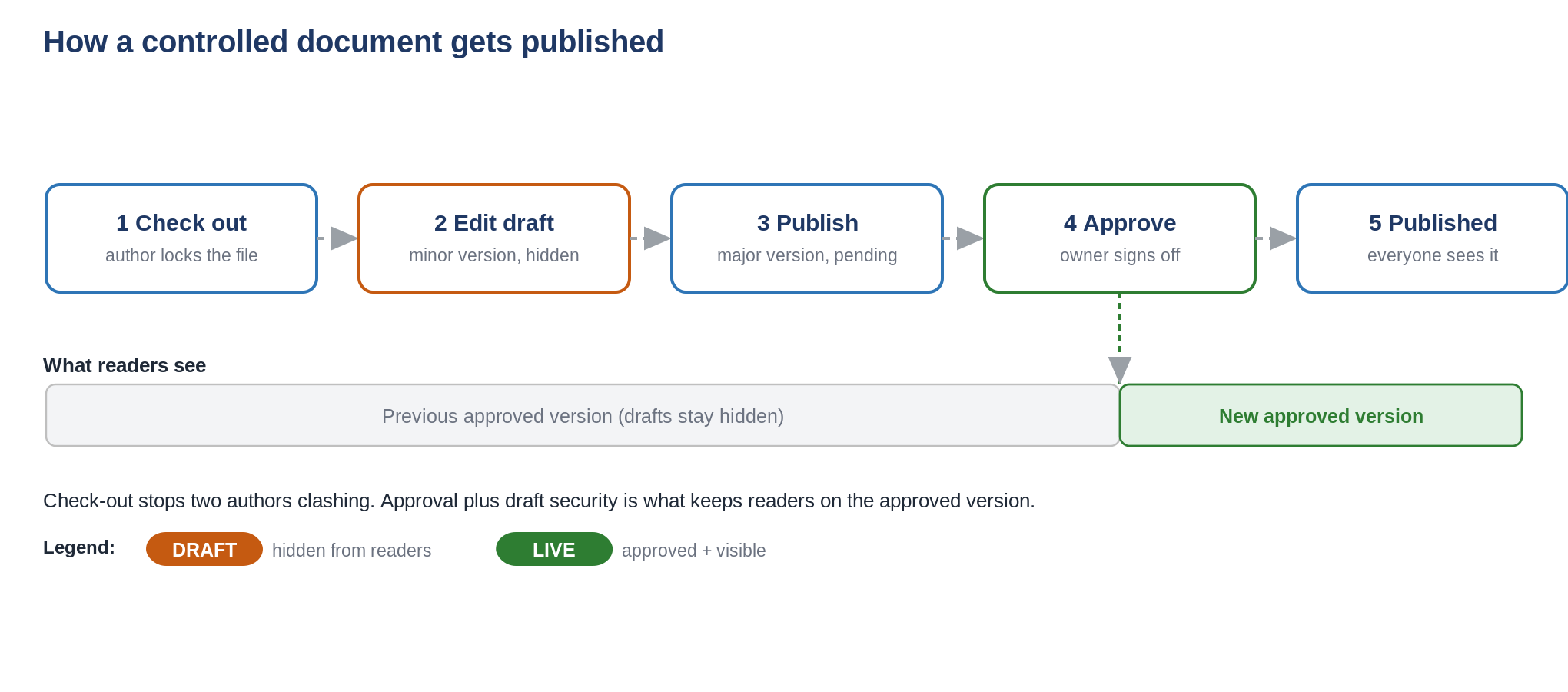
Check-out plus approval
This combination delivers the goal: permissions decide who edits, approval and draft security decide what readers see. Set these under Library settings → Versioning settings.
- Require documents to be checked out: Yes. One author edits at a time, no clashes.
- Create major and minor (draft) versions: Yes. Minor numbers are drafts; major numbers are published.
- Require content approval: Yes. A new version isn't published until an owner approves it.
- Draft item security: Only users who can edit items. Readers never see drafts or pending changes.
- Keep the number of versions: a sensible cap, such as 50 major versions.
Read and download is not view-only
Read permission lets people open and download. SharePoint permissions cannot give read without download. If a document must be viewed but not downloaded, printed or copied, that needs the library's Information Rights Management settings or a Purview sensitivity label with encryption, not permissions. Decide this per library, not per file.
Metadata and naming for controlled documents
- Reuse the Document Type column; Policy and Procedure already sit in the list.
- Add two columns: Owner (person) and Review Date (date). Pin a view for documents past review.
- Name with a stable identifier and short title: POL-007 Information Security, PRO-014 Onboarding. The number lets people cite the document; versioning handles the version, so keep it out of the name.
Everything else follows the standard: folder defaults from section 07, the type list from section 08, the naming rules from section 09. This library only adds the controls that published content needs.